Showing posts with label xhtml. Show all posts

Friday, April 19, 2013

Welcome to How to Create A Website

Web Browsers (Test Early, Test Often)

Turns out Apple Dropped support for the Window's version of Safari.  There is a version available, but it was last updated in July of 2012… 

If you have a PC, to test your web page to see what it looks like on an Apple Computer using Safari, you can use a Web Site teasing service at Sauce Labs https://saucelabs.com

This links takes you to a list of Web Browser publishers Download browsers! Install them!
  1. The Web Editors

    If you already have a Web Editor, by all means, use it! The following is a link to a web page that discusses the various kinds of web editors and give you some choices. The goal here is to find a web editor that you like, and that will help you build your web site. The Web Editors

    We'll start of using the HTML editors from Coffee Cup so you can get familiar with how html editors work..  You can always download and use these editors for free for 30 days or so…

    Windows:  Coffeecup HTML Editor

    Mac:  CoffeeCup HTML Editor

    Homework:  

    The write out Content and or ideas you want to see on your web pages…

    You can start off with a pencil and paper!… Then write it out in a text editor. 

    Go a head and install one of the above and try using it to write out your content…

    Save the file as a .txt file and put it in your master website folder. We'll use it in class…

     Most of all have fun! Get stuck, send an e-mail…

    Navigation Links for what was discussed in class

    • Week 1 (That's this page on my web site at the bottom of the page you'll see an RSS News feed that displays links to the last 5 articles on the class website blog)
    • Home   (Class Portal page)
    • Lesson 1 (Interesting stuff)
    • Domains and Hosts
    • Resources 
    • Contact

    Some Vocabulary 

    URL ---Uniform Resource Locator
    HTML & CSS
    --- HTML, Hyper Text Markup Language, creates the headings, paragraphs and other content for  a web page.
    --- CSS, Cascading Style Sheets, Creates the Styling for a web page.
    Provider
    --- Physically links your computer to the Internet.
    Host
    --- Provides the Computers (servers) to store and host your web site on the internet.
    Domain Name (Server) (DNS)
    --- makes a recognizable name for the actual numerical Internet address.
    Got a question? Send me an e-mail
Thursday, November 08, 2012

Week2 Review --Create a Website Class

Class Objective

To build a web site consisting of at least 3 interactive web pages.

This weeks Goal

  • --Add content and format  with xhtml
  • --Adding images to a web page

The xhtml rules

Before you can add html elements to a web page you need to know the rules!

http://uofgts.com/BasicWD/xhtml.html

Oh no, more rules! A few more things you need to know!
TYNTK

Add your content for your web page using the Web Editor of your Choice

Use this blank html5 page 

Basic Blank HTML5 Page 

When this above page loads in the browser, view the source, and copy it.

Paste it into a blank page in your web editor.

Then add your content in the order you want to see it displayed on the page

How? The following web page is a tutorial on how to add content and format it.

Just follow the steps and instructions. Got a question, send me an e-mail!

Building a Web Page-- How to add and format the content

(You will find the above web page in the class folder named week2… )

If you didn't attend the class, when the above page loads in the browser use the view source menu to copy the page and paste it into a blank page in your web editor.

HomeWork

after you do the above tutorial work on the following

1. Insert your content into an html5 wireframe
html5-3col.html

or
html5-2colindex.html

Those two files are already in your master folder!

2. Play with Sumo Paint and Make an image or graphic or logo

AND add it to your web page content!

An Image editor for everyone… SumoPaint

A free online paint program 

3. How to Insert an image on a web page

How to Insert an Image


Most of all have fun!

Friday, May 25, 2012

Web Class --The Layout Jumpstart

The easiest and best way to setup a website is with well designed layout, a wireframe that let's you plug-in YOUR content whether you are editing with an html editor or a WYSIWYG web editor.
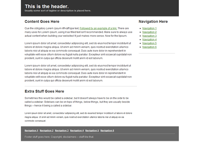
Preview
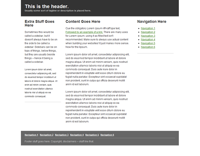
Preview
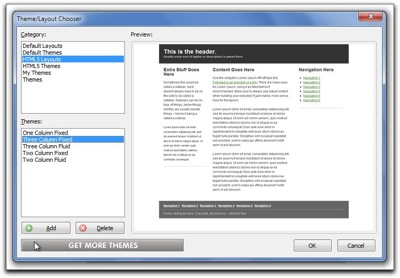
The Free Coffee Cup Html Editor offers some free html5 layouts. They are the best I have found to date and, there is no reason why you can't use those layouts in other editors...

Remember, one of our criteria is that our web pages support html5...

You can open these in the Free Coffee Cup Editor with the menu item:
ThemeLayouts
File > New from Theme/Layout

You can use these html5 layouts in any web editor including Blue Griffon.

If the layout isn't what you want, perhaps you need to have your navigation/menus horizontal. You can use Blue Griffon to generate your layout...


Step one (Blue Griffon):


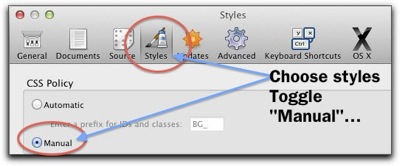
In Blue Griffon you should first set the following in preferences
Prefs styles
Menu:
Mac: Blue Griffon > Preferences
PC : Tools > Preferences


Step 2 Blue Griffon:

File > New wizard
First panel Choose xhtml5
Next panel (Continue to General document properties)
Fill out Title, Author, Description (what your web page is about  in a  paragraph) Key words (separated by a comma),  Language (American English), Characterset: Unicode (UTF-8) (continue to Colors and Background)
Leave alone (click Continue)
Document Background (Leave alone, Click Continue)
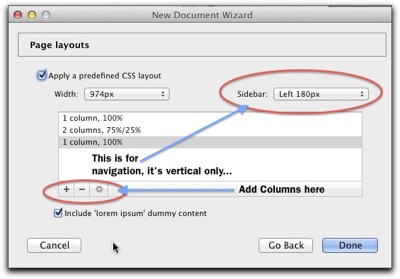
And here we are At Page Layouts
Page Layouts


You'll need to experiment a bit to get what you want,
The results The set up at the left yields a page that looks like this...


There are other layout generators… (all on line wizards) These are the best… give them a try! You'll like one of them!

 Turns out Blue Griffon uses a simpler version of the YUI Development module (Yahoo User Interface) More control here!
A more robust layout generator can be had  at CSS Creator
And, here's another one called CSS Layout Generator
All of these will work in any web editor. Amazing what neat tools you can find on the internet!
Have fun filling in your content and building your home index web page!
Have a really nice long week end!

Wednesday, May 09, 2012

Welcome to How To Build a Website!

Our Objective

  • To build a web site consisting of at least 3 web pages.
  • Acquire a domain name
  • Sign up with a HOST

How?

Discussion
Domain Names and registration
Signing up with a host

Domains and Hosts

What's the most important "THING" on a web page? What are the main parts of a web page?

Can you List them?

Write THEN CHECK OUT THIS LIST...

How do you put a web page together?

  1. The Content First
    • Create it with a text editor
    • Later we will mark it up with xhtml/html5 in your web editor
  2. The Layout
    • Will be Created with CSS3 in your web editor
  3. The Style
    • Will be Created with CSS3 in your web editor

Web Page Creation: The Preparation

You'll need 2 folders on YOUR flash drive and/or Home computer

  1. Make a "Master" website folder
      1. Name it with "Your name" something like "Garry-MasterWebsite"
        1. This folder only contains the files that makes your website work.
      2. And Make A "Webstuff" folder.
        1. This folder will contain the parts you collect to make your website...
          1. Things like, IDEAS, Text files, widgets, lists of links, graphics, pictures, videos... etc...

    Web browsers

    Here's a list that links you to web browser publishing sites Download all the browsers! Install them!

    The Web Editors

    If you already have a Web Editor, by all means, use it! The following is a link to a web page that discusses the various kinds of web editors and give you some choices. The goal here is to find a web editor that you like, and that will help you build your web site. The Web Editors

    Homework:  Write the most important part of your web pages

    The Content
    Always write the content first as plain text with no formatting.

    You'll find some ideas at this web page that will help you "layout" your web page. Lesson 1: Penciling it out!


    Most of all have fun! Get stuck, send an e-mail…

    Navigation Links

    • Week 1 (That's this page on my web site at the bottom of the page you'll see an RSS News feed that displays links to the last 5 articles on the class website blog)
    • Home   (Class Portal page)
    • Lesson 1 (Interesting stuff)
    • Domains and Hosts Resources 
    • Contact

    Vocabulary 

    URL
    ---Uniform Resource Locator
    HTML & CSS
    --- HTML, Hyper Text Markup Language, creates the content of a web page.
    --- CSS, Cascading Style Sheets, Creates the Styling for a web page.
    Provider
    --- Physically links your computer to the Internet.
    Host
    --- Provides the Computers (servers) to store and host your web site on the internet.
    Domain Name (Server) (DNS)
    --- makes a recognizable name for the actual numerical Internet address.
    Got a question? 'Holler!

Sunday, October 16, 2011

Week 2: Check List and Homework

Howdy

Where we are at, a check list:

Week 1

  1. Your web editing environment should be setup. 
    1. For this class the Master Web Site Folder should be on your Thumb Drive
  2. Downloaded and installed your web editor of choice
    1. It is important that your web editor, when it opens can access the files in your Web Site Master Folder.
    2. Otherwise your web site just won't work!
    3. Your web editor knows how  to link to your Web Site Server (if you don't have one yet, that's okay)
  3. Downloaded and installed at least 3 web browsers

You can access all the information you need to achieve above from the web page for Week 1: Getting Started

The result is that when you come to class you can startup Coffee Cup or Dreamweaver, or the editor of choice on your laptop and be ready to work.


Week 2

You should now be able to:

  1. Load a web page located in your Master Folder to edit in your html editor.
  2. Insert between <body> and </body>  using your web page html editor your content as text  and image(s)
  3. You should be able to format the inserted material as html elements. Especially:
    1. Headings
    2. paragraphs
    3. lists
  4. You can access all the information you need from the web page Week 2: Content and xhtml

Other Homework

On the CLASS CD is a .pdf file called textbook-short version.pdf read up to Splitting Up the Page on page 42.

If you have the book, Build Your Own Web Site The Right Way by Ian Lloyd,  read up to page 59

You can download the first 4 chapters of the book from Sitepoint.com for free. It's a really good book.

I'd also like you to just read about "links" on the class web site Links: It's what makes the Internet Work!


Next: Is there an "other" way to edit make web pages?


Thursday, April 29, 2010

Create A Web Site - Week 3 Making a Banner

Making a Banner
I put together a 7 step tutorial that takes you through the steps of making a styled banner
starting with text, then xhtml markup, then adding the CSS styling (embedded).

Files needed...
1. A background gradient or image
2. A logo...

You'll find page 1 here

On pages 2 - 7

on the left hand side of the page is what the markup looks like in a text editor
On the right hand side is what the markup looks like in a web editor...

Got a question? 'Holler as usual...