Showing posts with label web editors. Show all posts

Saturday, April 20, 2013

Setting up web editors

Trying out web editors

Any time you try out a new editor make sure the software knows where your Master Website folder is located… all of the programs will work better if you set up the master local site first.

Here's some help with the Coffeecup editors

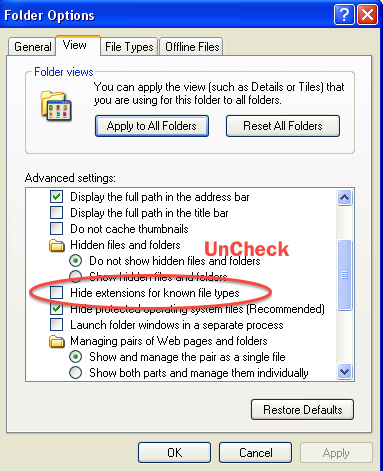
But, First: Make Extensions visible in WindowsXP, Vista, Win7 or Win 8

Mac and Windows OS's by default hide the 3 letter file extension for all files…  the extensions are part of the filename, the extensions tell web browsers to do with the file… Here's how you set that up…

On Windows XP

  • Open My Computer, and select Folder Options from the Tools menu
  • Don't see Menu's, press the Alt key
  • Click on the View tab, turn off Hide MS-DOS file extensions for known file types, by unchecking the box
  • Press OK.

On Windows Vista

    • Go to My Computer and choose Organize > Folder and Search Optionsv
    • Select the View tab and deselect "Hide extensions" for known file types
    • Press OK.

On Windows 7

  • Open an Explorer window and choose Organize > Folder and Search Options
  • Select the View tab -- and deselect the Hide extensions for known file types
  • Press OK.

Same for Win 8

Folderview

Making Extensions visible in OS X (Mac)

Finderprefs

  • open the Finder, then choose Menu Finder > Preferences
  • Choose the Advanced Tab
  • Check the Show all file extensions box


The extensions to tell us and the browsers which files are web pages, graphics or scripts)  The extension for a web page is .html or .htm Use one to the other, but be consistent! Graphic or picture files recognized by a browser use the extensions .jpg, .png or .gif, a new member of the graphic family is .svg.  Script files usually have the extension .css, .php, .js, or .cgi (there are many others).

Setting up Windows Coffee Cup Web Editor

The files in Your-Master-Site folder are called "Local" files, these file will eventually be uploaded to your "Server". The files located at the server are called "Remote" files

You can setup The CoffeeCup HTML editor using the menu item

My Websites > Website Project Settings…

You'll see this requester (If you need further help click the question mark)

MywebsitesProject settings


1. Give the project a name   2. Use the "browser" to locate Your-MasterWebsite folder on your flash drive

That's all you need to do for now. We'll set up the servers later…

In Coffeecup you'll see what's in the Local site folder on the left.

Windowsditor


Setting up a Mac for Coffeecup's Web Editor

It's a bit easier ???

In the Web Editor choose the menu item

File > New Project  > From Files and Folders

You'll get a Finder requester… Browse to your Local Site folder on your Flash Drive

But, title your project first…

Layout005

Then open the local site folder

and click next

Layout006

Highlight the files you want to edit or open and click okay

Your Web Editor will look like this… (well sorta… )

Layout007

and have fun!

We'll go over this in class… When we are ready we'll link your web editor to your hosting server!


Friday, April 19, 2013

Welcome to How to Create A Website

Web Browsers (Test Early, Test Often)

Turns out Apple Dropped support for the Window's version of Safari.  There is a version available, but it was last updated in July of 2012… 

If you have a PC, to test your web page to see what it looks like on an Apple Computer using Safari, you can use a Web Site teasing service at Sauce Labs https://saucelabs.com

This links takes you to a list of Web Browser publishers Download browsers! Install them!
  1. The Web Editors

    If you already have a Web Editor, by all means, use it! The following is a link to a web page that discusses the various kinds of web editors and give you some choices. The goal here is to find a web editor that you like, and that will help you build your web site. The Web Editors

    We'll start of using the HTML editors from Coffee Cup so you can get familiar with how html editors work..  You can always download and use these editors for free for 30 days or so…

    Windows:  Coffeecup HTML Editor

    Mac:  CoffeeCup HTML Editor

    Homework:  

    The write out Content and or ideas you want to see on your web pages…

    You can start off with a pencil and paper!… Then write it out in a text editor. 

    Go a head and install one of the above and try using it to write out your content…

    Save the file as a .txt file and put it in your master website folder. We'll use it in class…

     Most of all have fun! Get stuck, send an e-mail…

    Navigation Links for what was discussed in class

    • Week 1 (That's this page on my web site at the bottom of the page you'll see an RSS News feed that displays links to the last 5 articles on the class website blog)
    • Home   (Class Portal page)
    • Lesson 1 (Interesting stuff)
    • Domains and Hosts
    • Resources 
    • Contact

    Some Vocabulary 

    URL ---Uniform Resource Locator
    HTML & CSS
    --- HTML, Hyper Text Markup Language, creates the headings, paragraphs and other content for  a web page.
    --- CSS, Cascading Style Sheets, Creates the Styling for a web page.
    Provider
    --- Physically links your computer to the Internet.
    Host
    --- Provides the Computers (servers) to store and host your web site on the internet.
    Domain Name (Server) (DNS)
    --- makes a recognizable name for the actual numerical Internet address.
    Got a question? Send me an e-mail

Friday, October 26, 2012

Welcome to How to Create A Website

Web Browsers (Test Early, Test Often)

Turns out Apple Dropped support for the Window's version of Safari.  There is a version available, but it was last updated in July of 2012… 

If you have a PC, to test your web page to see what it looks like on an Apple Computer using Safari, you can use a Web Site testing service at Sauce Labs https://saucelabs.com

This link takes you to a list of Web Browser publishers Download browsers! Do Install them (Except for Window's Safari)!
  1. The Web Editors

    If you already have a Web Editor, by all means, use it! The following is a link to a web page that discusses the various kinds of web editors and give you some choices. The goal here is to find a web editor that you like, and that will help you build your web site. The Web Editors

    We'll start of using the HTML editors from Coffee Cup so you can get familiar with how html editors work..  You can always download and use these editors for free for 30 days or so…

    Windows:  Coffeecup HTML Editor

    Mac:  CoffeeCup HTML Editor

    Homework:  

    Write out Content and or ideas you want to see on your web pages…

    You can start off with a pencil and paper!… Then write it out in a text editor. 

    Go a head and install one of the above html editors and try using it to write out your content…

    Save the file as a .txt file and put it in your master website folder. We'll use it in class…

     Most of all have fun! Get stuck, send an e-mail…

    Navigation Links for what was discussed in class

    • Week 1 (That's this page on my web site at the bottom of the page you'll see an RSS News feed that displays links to the last 5 articles on the class website blog)
    • Home   (Class Portal page)
    • Lesson 1 (Interesting stuff)
    • Domains and Hosts
    • Resources 
    • Contact

    Some Vocabulary 

    URL ---Uniform Resource Locator
    HTML & CSS
    --- HTML, Hyper Text Markup Language, creates the headings, paragraphs and other content for  a web page.
    --- CSS, Cascading Style Sheets, Creates the Styling for a web page.
    Provider
    --- Physically links your computer to the Internet.
    Host
    --- Provides the Computers (servers) to store and host your web site on the internet.
    Domain Name (Server) (DNS)
    --- makes a recognizable name for the actual numerical Internet address.
    Got a question? Send me an e-mail

Monday, October 24, 2011

WYSIWYG --Visual Web Editors

Is there a way to edit a web page directly without using an html text editor? Is there a way to design a web page visually?

The answer is, YES! Sometimes a visual editor is real handy to have  around!

If you have purchased the Coffee Cup HTML Editor, you'll discover that it comes with a visual editor. You might not notice it as it might be "turned off!"  I found this "Faq" on the Coffee Cup web site.

Visual Editor Tab not displaying at all.

Solution: With the update to the latest version of the HTML Editor, the Visual Editor has been turned off by default. We did this to provide the best possible user experience. But don't fret — this is an easy issue to fix. To re-enable the Visual Editor, launch the Editor and go to the Tools > Preferences > General tab. Once there, uncheck the Hide Visual tab option...

Prefs visual


When you click on the Visual Editor Tab you can edit directly on the web page.

Insert HTML elements just like using a word processor...

Visual ed cp

Give it a try!

Coffee Cup has another Wed Editor that could be better described as a web designer.  It's called Visual Site Designer.

If you are visually oriented this might be a great editor for you.  You can download a free trial from Coffee Cup's web site

3207-coffeecup-visual-site-designer1.jpg


If you have a Mac (or a PC) you can try the Open Source program Kompozer (It's Free)

Click the link below to start the Download and give it a try.! Load a web page and start adding your content directly on the web page!


Kompozer


There is other software, noteablely Adobe's  Dreamweaver, but this class is not about web editors, it's about  creating a web site!

Web Editors are our tools of the trade!

Got a question,? 'Holler!


Sunday, October 09, 2011

Create A Web Site. What you need to do first review.

Howdy

Rule #1 Test early, test often.


I hope you all enjoyed the first Create A Web Site Class and you are looking forward to next weeks class as we are going to make a web page!

Yes, I know, in the mean time... there is a lot of busy work... it'll get better, I promise!

Setup
The first thing you need to do is finish setting up your "work" environment. 

1. You need to install on your computer several web browsers, so you can follow Rule #1
"Test early, test often"

Setting up our work environment on your computer.
Install at least 3 browsers, Internet Explorer, Firefox and Chrome (You might also consider Safari and Opera)
If you have a Mac--- there is NO Internet Explorer for a Mac!

So, how do you test your web pages for IE? 
For now you can use Adobe's Browser labs... (you don't need to own any Adobe Software!)

After April 12, 2012 Adobe Browser Labs  will be a subscription service.

https://browserlab.adobe.com/en-us/index.html

2. Install your editor

Install CoffeeCups Free HTML Editor, you can download it from CoffeeCup's Website

Or install the web Editor of your choice.

I ENCOURAGE you to experiment and try different web editors, so if you have a preferred Web Editor, by all means use it!

You might find this article interesting, I wrote it a while back

http://stasiuk.blogspot.com/2008/10/web-page-editing-nirvana.html


Step 2:
Setting up your Master "Local" website

From the Class CD Copy the YourWeb-Site Folder to a Flash Drive (USB Stick Drive) so you can work on your site at school or at home or at work!


Also maker an "empty" Website-Parts" folder on your flash drive.
(After you are done with class you can copy the folders  to where ever you want on your computer.

Step 3:
Sit down and write out what you think you want on YOUR home Web Page --The Content.
You can use pencil and paper, Word, or the Web Editor of you choice like coffee cup.

Don't worry about Xhtml or CSS, we'll do the formatting in class.

Save your "content" information and bring it to class...

remember, its the most important information on YOUR web page... the content!

We'll make our first web page in class Wednesday!

Resources

Read the online Lesson 1 for help in figuring out your content.


I highly recommend the following book
Build Your Own Web Site The Right Way Using HTML & CSS, 2nd Edition by Ian Lloyd Edition: ISBN: 978-0-9804552-7-4 Published: December 2008

(It's now in it's 3rd edition.)

If you have the book, Read Chapter 1 and Chapter 2 through to the end of page 47ish

If you don't have the book, On the Class CD disk in the folder "Articles" read The BeginnersGuide.pdf, it is a terrific synopsis of the above Ian Lloyd's book, of all things written by Ian Lloyd!

You can also down load the sample pdf for the book at  sitepoint.com. The Sample download has at least the complete chapters 1 and 2!

Have fun!
If you have any questions 'holler
but, I think a post (comment) here works much better

Got a question, Post a comment or send me an e-mail

Wednesday, April 28, 2010

Finding Web Page Editing Nirvana

Is there an easier way to make and edit web pages???

I think the WYSIWYG (What You See, Is What You Get) Open Source Web Editor Komposer is a great place to start making web pages, especially if you are just starting out. It's available for PC, Mac and more... There are better alternatives but they are NOT all free or open source like Kompozer. The best part is that Kompozer is currently being updated.

Several many years ago (once upon a time?) there were only a few solid web editors. Today there are many more choices and the competition is growing...

The combination that I use on my Mac are
Smultron, Komodo Edit, Kompozer Coda and Dreamweaver
For the specific task of making photo web galleries I have used iWeb, Lightroom and JAlbum.
In the past I tried Shutterbug (Mac) and Picasa (pc).

JAlbum is free, it's available for PC and Mac. It's a great web album utility and time saver, you can check it out and download it from here...
http://jalbum.net/

Here's a sample JAlbum Gallery

The reason I like the following programs is that I have existing web pages to edit, some of the web editors out there cannot load and edit straight html pages!
These 'Graphical" editors use an intermediate step... between html text editors and wysiwyg editors... they save the Web pages/projects in their own format... Then, when you upload to the web these programs convert their graphical formatted versions to html!

These editors can load and edit HTML pages
Komodo Edit (an HTML ope source and free editor) for PC and Mac
For PC's
The CoffeeCup HTML Editor 2010 ----is 2 Editors in 1 !
http://www.coffeecup.com/html-editor/

TopStyle (this is one terrific CSS/HTML textstyle editor a lot like Coda on the Mac)http://www.blogger.com/img/blank.gif
http://www.newsgator.com/Individuals/TopStyle/Default.aspx

MicroSoft's Web Expression 3 ---The price has come way down...It's now $149.00
http://www.microsoft.com/expression/products/overview.aspx?key=web
(it's a real long download)

Adobe's Dreamweaver CS 5
http://tryit.adobe.com/us/cs4/dreamweaver/index.html?sdid=DOPEY

These Graphical Editors are fun to use but Can not edit existing web sites

A free Graphical Web Editor called WebDwarf (PC Only)
http://www.virtualmechanics.com/products/dwarf/

Kinda fun to use, especially if you are artistically inclined...

it's big brother/sisters are SiteSpinner and SitesSpinnerPro
http://www.virtualmechanics.com/webhelp/sitespinner.html

For Photoshop Users there is a plugin called SiteGrinder
http://www.medialab.com/sitegrinder/

On the Mac there several graphical oriented editors
RapidWeaver
http://www.realmacsoftware.com/rapidweaver/

and
Freeway - Freeway Pro
http://www.softpress.com/products/index.php

And, there are others, but the ones mentioned have caught my attention so far
Oh, so many choices, so little time...

My current main working environment is Coda on the Mac

and I love it!

What you say?

--
Mo Eb , Garry
http://uofgts.com


o "It's the reason we came from the mud, don't you know/'Cause we wanted to climb to the stars." --- David Crosby