Showing posts with label html 5. Show all posts

Friday, May 10, 2013

What's the big deal about html5/CSS3?

In the Banner Tutorial we used a gradient graphic made in Photoshop. You can do the same thing in html5/CSS3 with markup.

And, you don't even have to write the markup, you just need to be able to "Cut" and "paste"

To find out more check out this web page.  Placing a gradient in the banner/header


Thursday, November 08, 2012

Week2 Review --Create a Website Class

Class Objective

To build a web site consisting of at least 3 interactive web pages.

This weeks Goal

  • --Add content and format  with xhtml
  • --Adding images to a web page

The xhtml rules

Before you can add html elements to a web page you need to know the rules!

http://uofgts.com/BasicWD/xhtml.html

Oh no, more rules! A few more things you need to know!
TYNTK

Add your content for your web page using the Web Editor of your Choice

Use this blank html5 page 

Basic Blank HTML5 Page 

When this above page loads in the browser, view the source, and copy it.

Paste it into a blank page in your web editor.

Then add your content in the order you want to see it displayed on the page

How? The following web page is a tutorial on how to add content and format it.

Just follow the steps and instructions. Got a question, send me an e-mail!

Building a Web Page-- How to add and format the content

(You will find the above web page in the class folder named week2… )

If you didn't attend the class, when the above page loads in the browser use the view source menu to copy the page and paste it into a blank page in your web editor.

HomeWork

after you do the above tutorial work on the following

1. Insert your content into an html5 wireframe
html5-3col.html

or
html5-2colindex.html

Those two files are already in your master folder!

2. Play with Sumo Paint and Make an image or graphic or logo

AND add it to your web page content!

An Image editor for everyone… SumoPaint

A free online paint program 

3. How to Insert an image on a web page

How to Insert an Image


Most of all have fun!

Friday, June 01, 2012

Week 4 - Review and Homework

Building a banner, positioning content, and menus 

Layout Review

Using the Position Rules
Making layouts

The Banner Tutorial -images & backgrounds

This tutorial uses Xhtml strict a good exercise would be for you to convert it to html5
The Banner Tutorials

For WYSIWYG users -- use an existing wireframe? Start here...

Homework

  1. Finish building the layout/wire frame of your "home" (index.html) web page
  2. Use this layout generator---  CSS Layout Generator it can make equal height columns regardless of content… This is an example…URL is http://uofgts.com/BasicWD/layout/index.html
  1. Add YOUR content for the JUST the header (banner)
  2. Make Your Own Menus use the The Menu Tutorials (There are cut and paste examples)
  3. Or use The List-o-matic menu generator List-o-matic
  4. Don't like List-o-matic Try this generator try Pure CSS Generator
  5. Make menus for Home, Contact, About and Products
  6. Insert the menus on your web page
  7. Now duplicate your index.html page 4 times, rename 3 of them: about.html, contact.html and products.html
  8. Congratulations, you now have the beginnings of a web site!

You can use Wizards and Widgets to embellish your web site!
Web Tools, Wizards and Widgets


On-Line and desktop References for html and CSS

CSS at Sitepoint.com

HTML at Sitepoint.com

Sitepoint also offers a "plug-in called Code Burner, it's a quick interface that resides on your desktop or in your FireFox Browser. It is linked to the Sitepoint on-line references for CSS and HTML. Check out Code Burner!

Graphically Challenged?

The Cool Text web site will help you design a logo. The Cool Text Wizard


Gota question? 'Holler

Thursday, May 31, 2012

Mystery of the Dead Banner

Yah, it was one of those days, no it wasn't dark, dreary and stormy. Not a chance, it was time for Web Class and out side it was even partially sunny with a slight evening breeze.

We we're learning how to divide, section, slice-up  --layout a web page. Instead of using the old xhtml style of using well named div's we were implementing features from the new kid on the block, html5.

In html5 it's a really good idea to contain or wrap ALL the sections of the layout with a <div> element. This changes the relationship of the pages sections from being related directly to the <body> of the page. The sections will now be the "child" of the containing wrapper <div>. That way we can move the entire layout by simply centering the wrapper div, or making the entire layout fluid so it always fills the page 100% no matter the size of the browser window.

So, to begin, our markup looked like this… We gave the wrapper a specific size and background color so we could actually see it on the page… we also decided the layout would be fixed and centered in the browser's screen.

<!DOCTYPE html>
<html>
<head>
<meta charset="utf-8">
<title>A Very Basic HTML5 Web Page</title>
<style type="text/css" media="screen">
html, body, div, header, footer, aside, nav, article, section, { margin: 0; padding: 0; }
header, footer, aside, nav, article, section { display: block; }

#wrapper {width: 960px;
height: 768px;
background-color: #ddd;
margin: 0 auto;
banner {width: 960px;
height: 160px;
background-color: yellow; }

</style>
<!--[if IE]>
<script src="http://html5shim.googlecode.com/svn/trunk/html5.js"></script> <![endif]-->
</head>

<body>
<div id="wrapper">

</div> <!-- Comment:   closing div for the wrapper --> 

</body>

</html>

 But, you'll notice a very interesting declaration in the embedded styles 

header, footer, aside, nav, article, section { display: block; }

and, this where we found the dead banner!  Let me explain.

The first "thing" that appears on a web page, I like to call the "banner" in xhtml that's what I name the id for that part of the page, <div  id = "banner">!  

In html5 there are very specific, well defined names for dividing up a web page.  Google searched and analyzed 3 Billion web pages to find common id names for web page divisions, and later the html5 consortium searched and anaylsed 3 Million web pages… and, the common division names are: header, nav and footer.

Somewhere, a long time ago, in the mists of the past I had read that you could, if you wanted to, you could use any name for a division of an html5 web page and long as you declared it, and told the browsers to make it display like a block element… So as an <aside> (to me, anyway) using <banner> instead of <header>, is much less confusing, since in html5, headings and <head> also exist.

Even possibly more confusing is the fact that in html5 a <header> is defined to contain heading elements, namely <h1> and even <h2>, <h3>, etc., Also, if necessary, there can be more than one <header> on a single page! Maybe confusing for humans, not so for computers.

So, I went a head and added <banner> to the above declarations, and added some styles to the <banner> 

The page markup now looked like this… but when displayed in a browser, the <banner> was no where to be seen, not at all visible, it was dead….  Try it and see for yourself (just cut and paste)

<!DOCTYPE html>
<html>
<head>
<meta charset="utf-8">
<title>A Very Basic HTML5 Web Page</title>
<style type="text/css" media="screen">
html, body, div, banner, header, footer, aside, nav, article, section, { margin: 0; padding: 0; }
banner, header, footer, aside, nav, article, section { display: block; }

#wrapper {width: 960px;
height: 768px;
background-color: #ddd;
margin: 0 auto;
banner {width: 960px;
height: 160px;
background-color: yellow; }

banner { width: 960px;
              height:150px;
back-ground-color: yellow;}

</style>
<!--[if IE]>
<script src="http://html5shim.googlecode.com/svn/trunk/html5.js"></script> <![endif]-->
</head>

<body>
<div id="wrapper">

<banner>

<h1>An h1 heading for our web page</h1>
<h2>A slug line for our banner</h2> 

</banner>

</div> <!-- Comment:   closing div for the wrapper --> 

</body>

</html>

As, you can see the <banner> , does not show up in a browser, it's gone, missing, it's dead!

In html5 the parts or divisions of the layout on a web page are well defined. Html5 uses a very precise language called semantics to describe the various parts of the layout.

Semantics, definition: the meaning, or an interpretation of the meaning of a word… 

One of the reasons for using well defined words is so that a computer (not humans?) can find a "section," an  "article" or the "header" on any web page easily and quickly…

The well defined words for html5 layout are:  header, footer, aside, nav, article, section

In our markup above, if you replace <banner> with <header> The header for our web page will display in all browsers just fine.

It was Sematics that killed the <banner>!
Using html5's well defined words, well,  puts us all on the same page...

To learn more about the sematics for header, footer, aside, nav, article, and section read this document. (It's also on your class disk.)

There are many articles written about the html5 semantics, just do a Google search using the phrase
html5 semantics

Today the sun is shinning on our web pages, even though it's raining outside, again, in dreary Vancouver, WA

Friday, May 25, 2012

Web Class --The Layout Jumpstart

The easiest and best way to setup a website is with well designed layout, a wireframe that let's you plug-in YOUR content whether you are editing with an html editor or a WYSIWYG web editor.
Preview
Preview
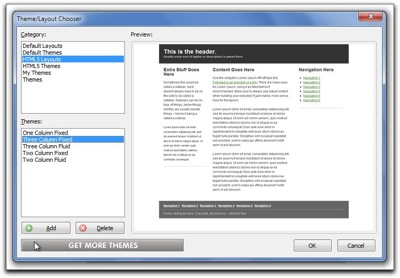
The Free Coffee Cup Html Editor offers some free html5 layouts. They are the best I have found to date and, there is no reason why you can't use those layouts in other editors...

Remember, one of our criteria is that our web pages support html5...

You can open these in the Free Coffee Cup Editor with the menu item:
ThemeLayouts
File > New from Theme/Layout

You can use these html5 layouts in any web editor including Blue Griffon.

If the layout isn't what you want, perhaps you need to have your navigation/menus horizontal. You can use Blue Griffon to generate your layout...


Step one (Blue Griffon):


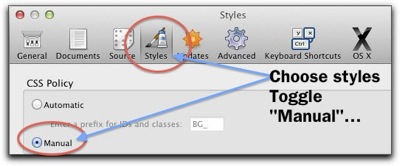
In Blue Griffon you should first set the following in preferences
Prefs styles
Menu:
Mac: Blue Griffon > Preferences
PC : Tools > Preferences


Step 2 Blue Griffon:

File > New wizard
First panel Choose xhtml5
Next panel (Continue to General document properties)
Fill out Title, Author, Description (what your web page is about  in a  paragraph) Key words (separated by a comma),  Language (American English), Characterset: Unicode (UTF-8) (continue to Colors and Background)
Leave alone (click Continue)
Document Background (Leave alone, Click Continue)
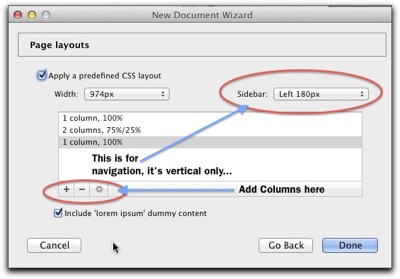
And here we are At Page Layouts
Page Layouts


You'll need to experiment a bit to get what you want,
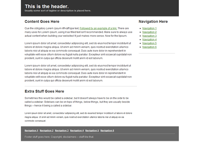
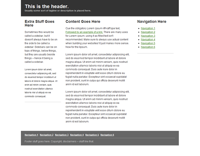
The results The set up at the left yields a page that looks like this...


There are other layout generators… (all on line wizards) These are the best… give them a try! You'll like one of them!

 Turns out Blue Griffon uses a simpler version of the YUI Development module (Yahoo User Interface) More control here!
A more robust layout generator can be had  at CSS Creator
And, here's another one called CSS Layout Generator
All of these will work in any web editor. Amazing what neat tools you can find on the internet!
Have fun filling in your content and building your home index web page!
Have a really nice long week end!

Friday, May 18, 2012

Web Class -- Week 2, Your Very First Web Page

Week 2 

CLASS #2 Notes:
“If you really want to know if your
Web site works, ask your next
door neighbor to try using it, while
you watch.
(You bring the beer.)”
http://www.sensible.com/

Content and xhtml

Subjects

  1. Adding Content to a basic Web Page
  2. xhtml - some rules
  3. (x)html elements - defined
  4. Formatting your content
  5. The <img /> element
    • Image editing
    • Inserting a graphic on a web page

Objective This week

  • --Adding Content and formatting content with xhtml
  • Working with images

Resources for this week -- The Links

The xhtml rules
http://uofgts.com/BasicWD/xhtml.html

Oh no, more rules! Things you need to know!
TYNTK

At the very least this week

Go through this xhtml tutorial...

The Building Blocks of a Web Page

You should be able to Format your content
Using the Web Editor of your Choice 

and the basic elements
start with this very Basic html5  Blank Page

(It's in your class Master website folder)

or you can get it here

http://uofgts.com/BasicWD/Basicxhtmlpage5.html

 After you have gone through the tutorial you can use one of these wire "frame" templates to insert your content...

html5-3col.html, html5-2colindex.html

In your class master web site folder there are a few others wire frames...

Play with Sumo Paint

SumoPaint If you know a little Photoshop, you'll know how to use this free on-line paint program.
Use it to add an image or graphic or logo to your content!

Here's a More detailed tutorial on how to insert an image on a page using <img>
Inserting Images


What we will look at next week...

Some vocabulary 

.php
- Personal Home Page is actually a server side scripting language
An xhtml element
is made up of an opening tag like <h1> and a closing tag </h1>.
Depreciation
- deprecation is applied to software features that are superseded and should be avoided. Deprecation may indicate that the feature will be removed in the future. Features are deprecated—rather than being removed.
http
- hyper text transfer protocol.
ftp
- file transfer protocol
XHTML
– The Extensible Hypertext Markup Language.
a markup language that has the same depth of expression as HTML but also conforms to XML syntax.
The intersection of HTML and XML a reformulation of HTML in XML.

 Got a question?  'holler… 

Wednesday, May 09, 2012

Welcome to How To Build a Website!

Our Objective

  • To build a web site consisting of at least 3 web pages.
  • Acquire a domain name
  • Sign up with a HOST

How?

Discussion
Domain Names and registration
Signing up with a host

Domains and Hosts

What's the most important "THING" on a web page? What are the main parts of a web page?

Can you List them?

Write THEN CHECK OUT THIS LIST...

How do you put a web page together?

  1. The Content First
    • Create it with a text editor
    • Later we will mark it up with xhtml/html5 in your web editor
  2. The Layout
    • Will be Created with CSS3 in your web editor
  3. The Style
    • Will be Created with CSS3 in your web editor

Web Page Creation: The Preparation

You'll need 2 folders on YOUR flash drive and/or Home computer

  1. Make a "Master" website folder
      1. Name it with "Your name" something like "Garry-MasterWebsite"
        1. This folder only contains the files that makes your website work.
      2. And Make A "Webstuff" folder.
        1. This folder will contain the parts you collect to make your website...
          1. Things like, IDEAS, Text files, widgets, lists of links, graphics, pictures, videos... etc...

    Web browsers

    Here's a list that links you to web browser publishing sites Download all the browsers! Install them!

    The Web Editors

    If you already have a Web Editor, by all means, use it! The following is a link to a web page that discusses the various kinds of web editors and give you some choices. The goal here is to find a web editor that you like, and that will help you build your web site. The Web Editors

    Homework:  Write the most important part of your web pages

    The Content
    Always write the content first as plain text with no formatting.

    You'll find some ideas at this web page that will help you "layout" your web page. Lesson 1: Penciling it out!


    Most of all have fun! Get stuck, send an e-mail…

    Navigation Links

    • Week 1 (That's this page on my web site at the bottom of the page you'll see an RSS News feed that displays links to the last 5 articles on the class website blog)
    • Home   (Class Portal page)
    • Lesson 1 (Interesting stuff)
    • Domains and Hosts Resources 
    • Contact

    Vocabulary 

    URL
    ---Uniform Resource Locator
    HTML & CSS
    --- HTML, Hyper Text Markup Language, creates the content of a web page.
    --- CSS, Cascading Style Sheets, Creates the Styling for a web page.
    Provider
    --- Physically links your computer to the Internet.
    Host
    --- Provides the Computers (servers) to store and host your web site on the internet.
    Domain Name (Server) (DNS)
    --- makes a recognizable name for the actual numerical Internet address.
    Got a question? 'Holler!

Saturday, November 12, 2011

Really Easy HTML5 Video

Howdy

Couldn't resist telling you about this free program.

It makes placing video on your web pages, well really easy! And, it's free, EasyHTML5video! There is a paid version that produces the video watermarked with your URL or not.


Easyhtml5video


What makes it real easy to use is that it encodes all the different video formats you need for each html 5 capable browser as each browser has its own built in video player!

One thing to watch for, this program puts an extension on the Firefox compatable video that gave my Mac and Firefox a problem (the video would play locally, but when I uploaded it, it wouldn't play in Firefox)

It's easily fixed. Just rename the video with the .ovg extension to .ogg  and in the generated html5 markup change the .ovg extension to .ogg (There will only be one occurrence of .ovg to change)

Here's an example video on my curling clubs web page using this program by http://easyhtml5video.com/

If you use the different browsers, Safari, iPhone, smart phone, Firefox, Chrome or Internet Explorer you'll see the different players used by each of the browsers.

Enjoy!!!!

Dare