Showing posts with label Safari. Show all posts

Wednesday, May 09, 2012

Welcome to How To Build a Website!

Our Objective

  • To build a web site consisting of at least 3 web pages.
  • Acquire a domain name
  • Sign up with a HOST

How?

Discussion
Domain Names and registration
Signing up with a host

Domains and Hosts

What's the most important "THING" on a web page? What are the main parts of a web page?

Can you List them?

Write THEN CHECK OUT THIS LIST...

How do you put a web page together?

  1. The Content First
    • Create it with a text editor
    • Later we will mark it up with xhtml/html5 in your web editor
  2. The Layout
    • Will be Created with CSS3 in your web editor
  3. The Style
    • Will be Created with CSS3 in your web editor

Web Page Creation: The Preparation

You'll need 2 folders on YOUR flash drive and/or Home computer

  1. Make a "Master" website folder
      1. Name it with "Your name" something like "Garry-MasterWebsite"
        1. This folder only contains the files that makes your website work.
      2. And Make A "Webstuff" folder.
        1. This folder will contain the parts you collect to make your website...
          1. Things like, IDEAS, Text files, widgets, lists of links, graphics, pictures, videos... etc...

    Web browsers

    Here's a list that links you to web browser publishing sites Download all the browsers! Install them!

    The Web Editors

    If you already have a Web Editor, by all means, use it! The following is a link to a web page that discusses the various kinds of web editors and give you some choices. The goal here is to find a web editor that you like, and that will help you build your web site. The Web Editors

    Homework:  Write the most important part of your web pages

    The Content
    Always write the content first as plain text with no formatting.

    You'll find some ideas at this web page that will help you "layout" your web page. Lesson 1: Penciling it out!


    Most of all have fun! Get stuck, send an e-mail…

    Navigation Links

    • Week 1 (That's this page on my web site at the bottom of the page you'll see an RSS News feed that displays links to the last 5 articles on the class website blog)
    • Home   (Class Portal page)
    • Lesson 1 (Interesting stuff)
    • Domains and Hosts Resources 
    • Contact

    Vocabulary 

    URL
    ---Uniform Resource Locator
    HTML & CSS
    --- HTML, Hyper Text Markup Language, creates the content of a web page.
    --- CSS, Cascading Style Sheets, Creates the Styling for a web page.
    Provider
    --- Physically links your computer to the Internet.
    Host
    --- Provides the Computers (servers) to store and host your web site on the internet.
    Domain Name (Server) (DNS)
    --- makes a recognizable name for the actual numerical Internet address.
    Got a question? 'Holler!

Sunday, October 09, 2011

Create A Web Site. What you need to do first review.

Howdy

Rule #1 Test early, test often.


I hope you all enjoyed the first Create A Web Site Class and you are looking forward to next weeks class as we are going to make a web page!

Yes, I know, in the mean time... there is a lot of busy work... it'll get better, I promise!

Setup
The first thing you need to do is finish setting up your "work" environment. 

1. You need to install on your computer several web browsers, so you can follow Rule #1
"Test early, test often"

Setting up our work environment on your computer.
Install at least 3 browsers, Internet Explorer, Firefox and Chrome (You might also consider Safari and Opera)
If you have a Mac--- there is NO Internet Explorer for a Mac!

So, how do you test your web pages for IE? 
For now you can use Adobe's Browser labs... (you don't need to own any Adobe Software!)

After April 12, 2012 Adobe Browser Labs  will be a subscription service.

https://browserlab.adobe.com/en-us/index.html

2. Install your editor

Install CoffeeCups Free HTML Editor, you can download it from CoffeeCup's Website

Or install the web Editor of your choice.

I ENCOURAGE you to experiment and try different web editors, so if you have a preferred Web Editor, by all means use it!

You might find this article interesting, I wrote it a while back

http://stasiuk.blogspot.com/2008/10/web-page-editing-nirvana.html


Step 2:
Setting up your Master "Local" website

From the Class CD Copy the YourWeb-Site Folder to a Flash Drive (USB Stick Drive) so you can work on your site at school or at home or at work!


Also maker an "empty" Website-Parts" folder on your flash drive.
(After you are done with class you can copy the folders  to where ever you want on your computer.

Step 3:
Sit down and write out what you think you want on YOUR home Web Page --The Content.
You can use pencil and paper, Word, or the Web Editor of you choice like coffee cup.

Don't worry about Xhtml or CSS, we'll do the formatting in class.

Save your "content" information and bring it to class...

remember, its the most important information on YOUR web page... the content!

We'll make our first web page in class Wednesday!

Resources

Read the online Lesson 1 for help in figuring out your content.


I highly recommend the following book
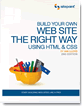
Build Your Own Web Site The Right Way Using HTML & CSS, 2nd Edition by Ian Lloyd Edition: ISBN: 978-0-9804552-7-4 Published: December 2008

(It's now in it's 3rd edition.)

If you have the book, Read Chapter 1 and Chapter 2 through to the end of page 47ish

If you don't have the book, On the Class CD disk in the folder "Articles" read The BeginnersGuide.pdf, it is a terrific synopsis of the above Ian Lloyd's book, of all things written by Ian Lloyd!

You can also down load the sample pdf for the book at  sitepoint.com. The Sample download has at least the complete chapters 1 and 2!

Have fun!
If you have any questions 'holler
but, I think a post (comment) here works much better

Got a question, Post a comment or send me an e-mail

Thursday, April 29, 2010

Create A Web Site --Week 1

Howdy

Rule #1 Test early, test often.

I hope you all enjoyed the first Create A Web Site Class and you are looking forward to next weeks class.

Setup
The first thing you need to do is finish setting up your "work" environment.

1. You need to install on your computer several web browsers, so you can follow Rule #1
"Test early, test often"

For the PC -- Firefox, Internet Explorer 7/8, Safari, and Chrome.

For the Mac -- Firefox, Chrome and of course Safari. (there is no IE for the Mac)
You can find links to the above browser websites on the class resource page, it's also on-line here

http://uofgts.com/BasicWD/resource.html

2. Setting up a webpage text/html editor.
The previous blog and Lesson #1 provide links to different kinds of web editors... It's up to you to try them out, to find the "one" that works best for you... Most web editors have a free trial period.

Even if you are using Dreamweaver or MicroSoft's Web Expressions, you'll need a good text editor. In the classroom we will use Komodo Edit (it's available for both the Mac and PC) and it's Open Source and Free!
Here's a link to Active States Komodo Edit website

In the class we use the portable version of Komodo Edit
if you are having problems copying it from the Class CD --> to your flash drive, you can download the Portable Apps installer

Homework
Read the online Lesson 1

The Class text book
Build Your Own Web Site The Right Way Using HTML & CSS, 2nd Edition by Ian Lloyd Edition: ISBN: 978-0-9804552-7-4 Published: December 2008

Down load the sample files!!!

Read Chapter 1 and Chapter 2 through to the end of page 47

On the Class CD disk in the folder "Articles" read The BeginnersGuide.pdf, it is a terrific synopsis of your text book and should be required reading!

You can down load the sample pdf for the book. The Sample download has at least the complete chapters 1 and 2!

More homework
write down everything you think you want on your Home web page (index.html)

Have fun!
If you have any questions 'holler
but, I think a post here works much better